Printing tips
Printing Kids Printables at Home: Paper, Size, Laminating
The short version: open the PDF in a free reader such as Adobe Acrobat Reader, print at Actual size (100%), use plain paper for anything kids will color or write on once, and cardstock for anything they will handle again and again. Laminate only the pages that need to survive sticky hands.
I make printables for a living, and most of the questions I get after a download are about printing, not the activities. So here is the whole process, start to finish, with the settings that actually matter.
1. Open the file in a real PDF reader
Browsers can open PDFs, but they sometimes ignore page size or scale the page without telling you. Download the file first, then open it in Adobe Acrobat Reader (free on Windows and Mac) or Preview on a Mac. If the file has fillable fields, such as a name on a certificate, Acrobat Reader is the safest choice: type in the fields, save, then print.
If you bought from an Etsy shop, the files are under Purchases and reviews in your Etsy account. On a phone, it is easier to download them on a computer later; phones tend to save PDFs in odd folders.
2. Pick the right paper size file
Most printable shops include two versions: US Letter (8.5 x 11 in, used in the US and Canada) and A4 (210 x 297 mm, used almost everywhere else). Print the one that matches the paper in your tray. Printing an A4 file on Letter paper cuts off the edges, and the reverse leaves an uneven white border.
3. Use these print settings
In the print dialog, look for:
- Scale: Actual size / 100%. Not “Fit,” not “Shrink oversized pages.” This keeps cards, puzzle pieces and matching shapes the size they were designed to be.
- Orientation: Auto. Placemats and some charts are landscape; let the reader rotate them.
- Print one test page first. Check the margins and colors before you send 40 pages.
- Single-sided for anything kids color with markers, so ink does not bleed onto the back of the next activity.
4. Choose paper by how the page will be used
| What you are printing | Paper |
|---|---|
| Coloring pages with crayons or pencils | Regular 80 gsm (20 lb) copy paper |
| Coloring pages with markers | Thicker paper, 120 gsm (32 lb) or more |
| Worksheets, mazes, word searches | Regular copy paper |
| Game boards, bingo cards, activity cards | Cardstock, 160–250 gsm (65–90 lb cover) |
| Busy book mats and pieces | Cardstock, then laminate |
| Certificates and letters | Cardstock or a nice matte paper |
Check your printer manual for the heaviest paper it accepts. Many home inkjets handle around 200 gsm through the rear or single-sheet feed, but not from the main tray.
5. Save ink without ruining the page
- Print black and white versions when they exist. Many sets include them for coloring.
- Use “Draft” or “Economy” mode for practice worksheets you will print again.
- Only print the pages you need this week. A big bundle does not have to be printed in one sitting. I plan my own files so you can print a few pages at a time.
- Print color pages on the “standard” quality setting rather than “best photo.” On plain paper, the difference is small.
6. Cut neatly (a grown-up job for small pieces)
A paper trimmer makes straight cuts on cards much faster than scissors. For rounded shapes, cut roughly first, then trim along the line. Leave a thin border of about 2–3 mm (1/8 in) around laminated pieces so the edges stay sealed.
7. Laminate the pages that get reused
Laminate after cutting the sheet into rough sections, then trim again, leaving that small sealed border. Options:
- Thermal laminator with 3 mil pouches for most pages; 5 mil feels sturdier for busy book pieces.
- Self-adhesive sheets if you do not own a laminator. Smooth them from the center outward.
- Clear packing tape for a few small cards.
- Sheet protectors in a binder for worksheets you want to use with dry-erase markers.
For busy books, add hook-and-loop dots after laminating: the rough side on the mat, the soft side on the piece. My toddler busy book guide walks through assembling a whole binder, and it has a free 2-page sample (an ornament color sort mat and its pieces) you can use to practice these settings.
Safety notes for small pieces
Cut pieces, hook-and-loop dots and laminating scraps can be choking hazards for children under 3. Sweep up scraps right after cutting, store pieces in a lidded box, and stay with toddlers while they play. The American Academy of Pediatrics has a clear choking prevention page if you want the full list of risky items. Keep laminator pouches and the hot laminator itself out of reach while it warms up.
Printing at a print shop or library
If your home printer struggles with cardstock, a print shop can do it. Send the PDF, ask for “actual size, no scaling,” and name the paper weight you want. Most personal-use printable licenses allow printing at a shop for your own family or class, but check the terms in the file.
A simple plan for a big download
When someone buys a large set, such as our Christmas Mega Bundle, I suggest printing in three rounds rather than all at once:
- Week before: anything that needs cutting or laminating (cards, game boards, busy book pieces).
- Each weekend: coloring pages and worksheets for the coming week.
- The day before: fillable letters and certificates, once you know the names and details.
My Christmas printables bundle guide has a week-by-week December plan along these lines.
Quick troubleshooting
- Edges cut off: you are printing an A4 file on Letter paper or the scale is above 100%. Switch files or set Actual size.
- Pieces do not fit their outlines: the page was printed with “Fit,” so everything shrank by a few percent. Reprint at 100%.
- Streaks: run the printer’s nozzle check or head cleaning from its settings.
- Fillable text missing on print: save the PDF after typing, close it, reopen it in Acrobat Reader and print from there.
That is really all there is to it. Get the scale right, match the paper to the job and laminate only what will be reused.
Printables that go with this post
These are from my shop on Etsy, where you see the price in your local currency.
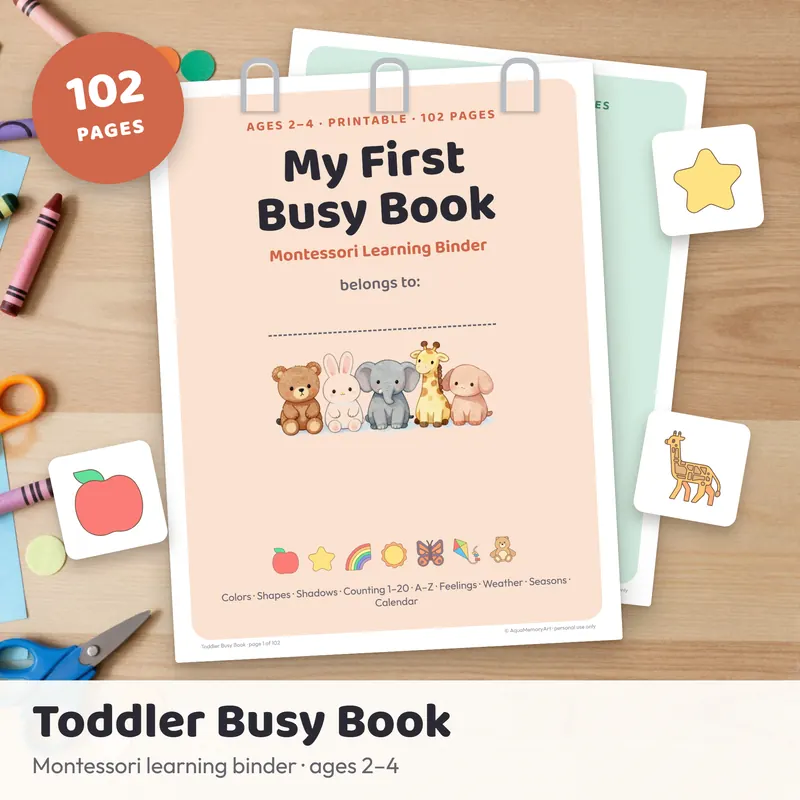
Toddler Busy Book Printable (Montessori Learning Binder)
102 pages · ages 2–4 · US Letter + A4 PDF
- Color, shape and shadow matching mats with picture cards
- Count 1–10 ten-frame mats, numbers 1–20 and an A–Z page for every letter
- Weather, calendar, feelings, seasons and sorting activities
Instant download on Etsy · print at home
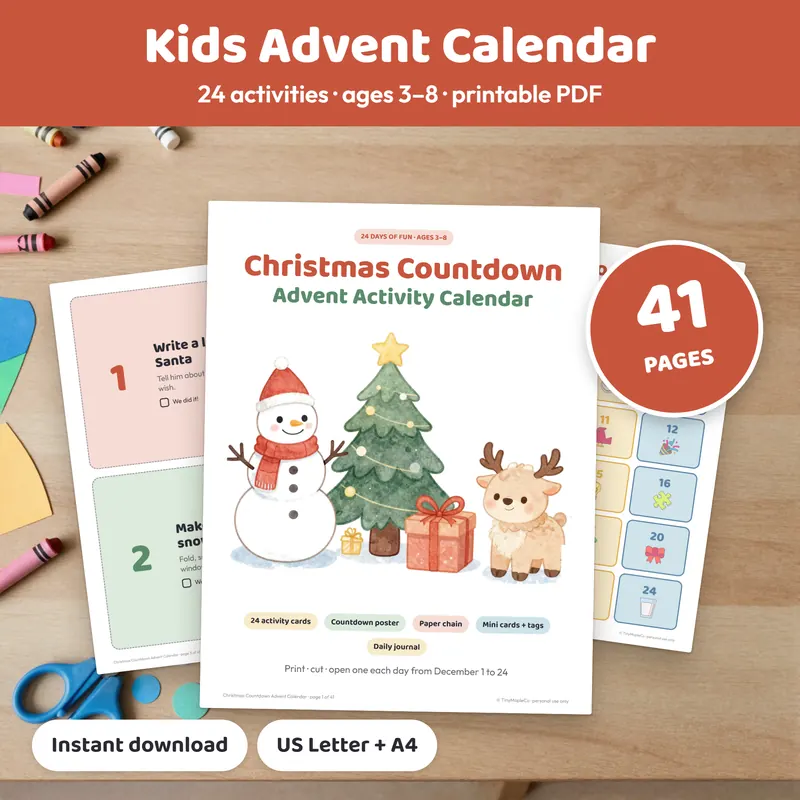
Christmas Advent Calendar Activity Cards
41 pages · 24 activity cards · ages 3–8 · US Letter + A4 PDF
- 24 big activity cards + 24 mini cards to hide in envelopes, bags or boxes
- 6 blank “make your own” cards and number tags 1–24
- Countdown poster, tree tracker, paper chain strips and a 4-page December journal
Instant download on Etsy · print at home
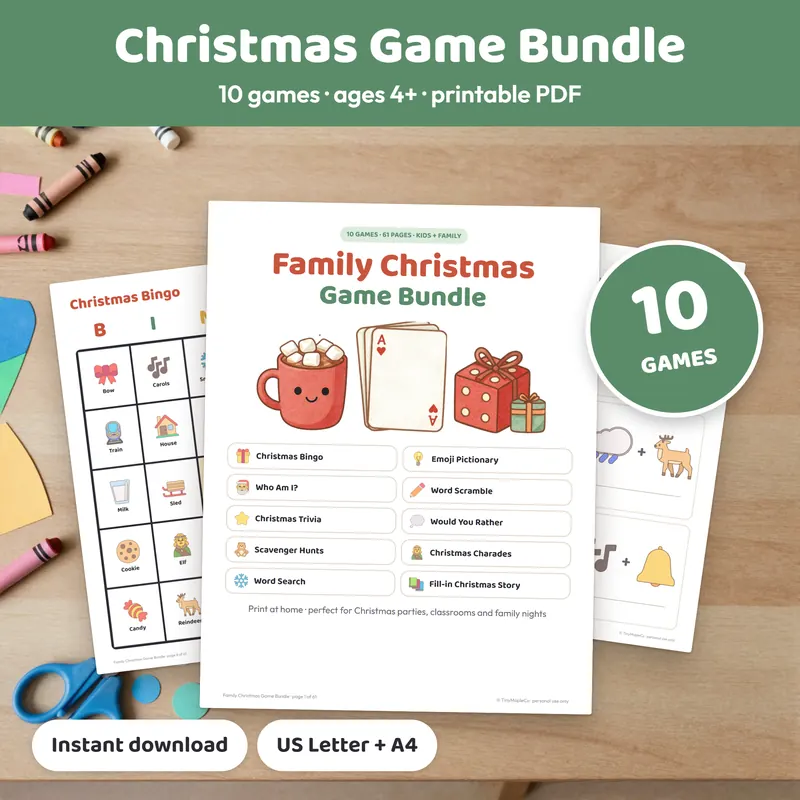
Family Christmas Games Bundle
61 pages · 10 games · 2–24 players · ages 4+ to grown-ups
- Christmas Bingo with 24 different boards + 30 calling cards
- Trivia (40 questions), Emoji Pictionary, Who Am I?, Charades, Would You Rather
- Scavenger hunt, word scramble, word search and a fill-in story; answer keys included
Instant download on Etsy · print at home
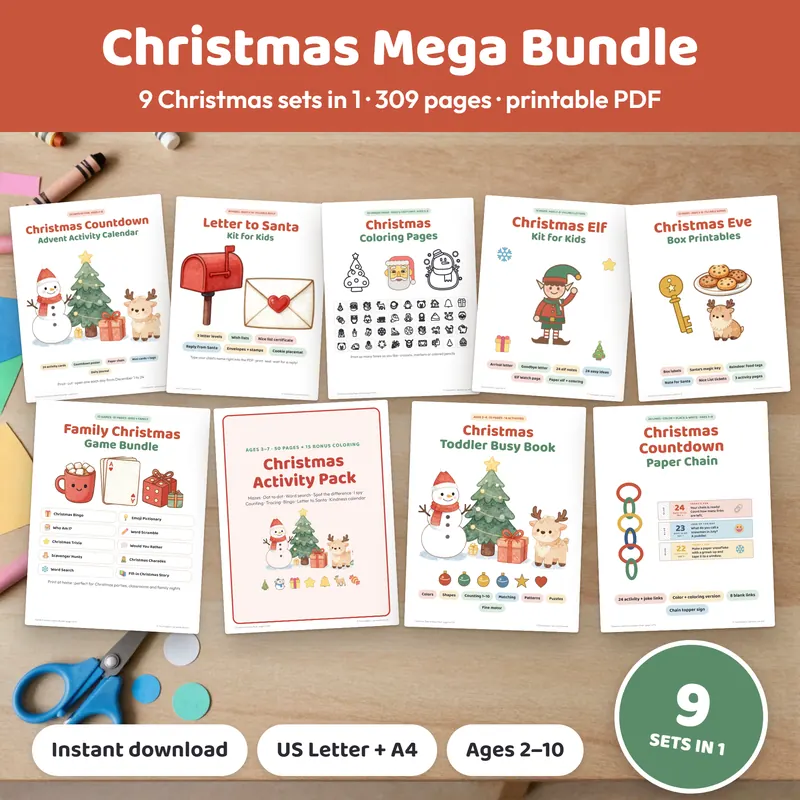
Christmas Mega Bundle (9 Sets in 1)
9 Christmas sets · 309 pages per paper size · ages 2–10
- Activity Pack, Advent Activity Cards, Letter to Santa Kit, 50 Coloring Pages, Elf Kit
- Games Bundle, Toddler Busy Book, Christmas Eve Box, Countdown Paper Chain
- A “START HERE” guide; US Letter and A4 versions
Instant download on Etsy · print at home
Frequently asked questions
Should I print at Actual size or Fit to page?
Use Actual size (100%). Fit to page shrinks the design slightly, which matters for anything with matching pieces, card sizes or a laminator pouch.
What paper weight is best for printables?
Regular 80 gsm (20 lb) paper is fine for coloring and worksheets. For cards, game boards and busy book pieces, use cardstock around 160–250 gsm (65–90 lb cover) if your printer can feed it.
Do I need a laminator?
No. Self-adhesive laminating sheets, clear packing tape or sheet protectors in a binder all work for pages you want to reuse.
Why do my colors look different from the screen?
Screens glow and paper reflects light, so printed colors usually look a little darker. Printer settings, ink levels and paper type also change the result.